Work through a Job
Use attachments, subtasks, time logs, and email history on one piece of work.
Select a screenshot to open it full size in a new tab.
On this page
Current app label: open Tasks to find a Job.
Use Review VAT return for Seabreeze Trading Ltd as an example. You will add supporting work, record time, and check what happened. For a description of every area, see Inside a Job.
1. Open the right Job
Open Tasks and select the Job. Check the Entity, Service, due date, and assignee before changing anything. If you opened a quick view, you can still use its Job controls.
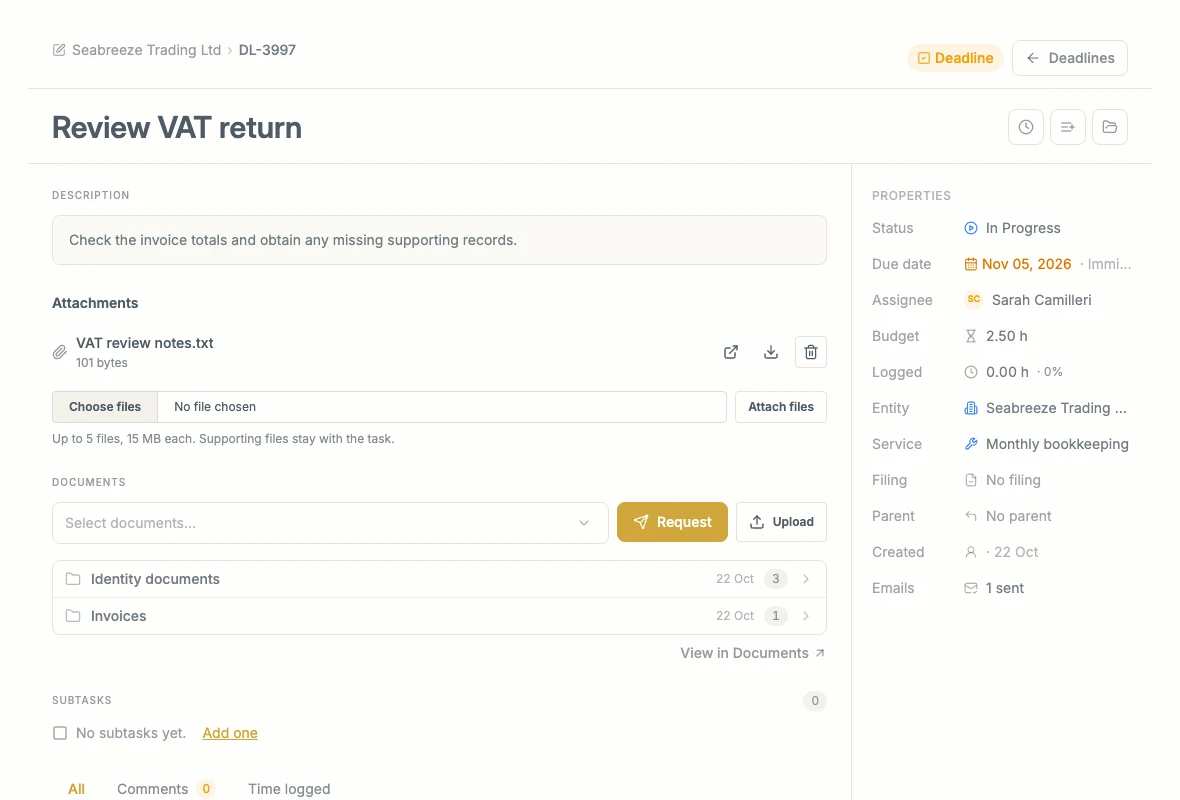
Attachments hold working files for this Job. Documents shows the client records required for the work.
2. Add a supporting attachment
- Under Attachments, choose a working file, such as VAT review notes.txt.
- Select Attach files.
- Check that the filename appears. Select it to preview or download it using the controls offered.
Attach up to five files at a time, each no larger than 15 MB. These are one-off supporting files, not documents sent through classification and filing. To collect an invoice or another client record, use Upload documents instead.
3. Add a subtask
- Select Add one under Subtasks, or the Add subtask button near the title.
- Enter Check bank reconciliation as the title.
- Use the chips to choose the status, due date, and assignee.
- Select Create subtask, or press Ctrl+Enter / ⌘+Enter.
- Check that the new subtask appears under its parent.
Turn on Create more when adding several subtasks. Press Escape to cancel an unfinished subtask. The parent Job’s budget covers its work and subtasks; a subtask does not have a separate budget.
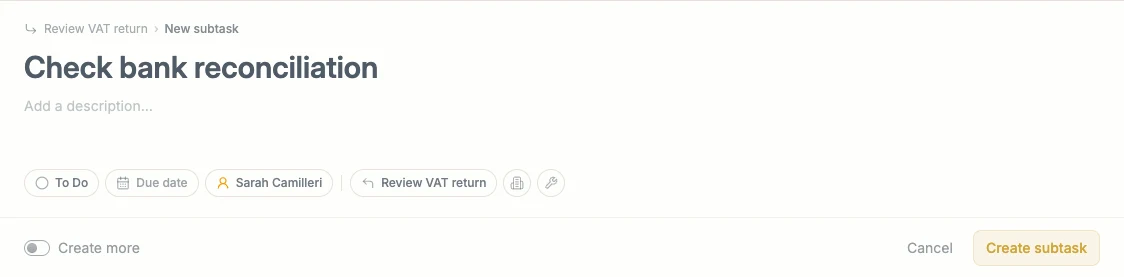
Give each subtask a clear outcome and choose who is responsible before creating it.
4. Record time spent
- Select the clock control, Log time, near the Job title.
- Choose the time spent using the available controls and save the entry.
- Open Time logged below the Job to check it.
- Add or edit the date and note where needed. In this example, record 30 minutes with the note Checked the invoice totals.
You can edit or remove your own time entries. Removing a time entry changes the total; it does not erase the activity entry recording that change. Check the updated Logged and budget figures.

The Time logged tab shows the saved minutes, date, note, and the controls for your own entry.
5. Check the related emails
Select Emails in the Job’s properties. Open a message to check its recipients, contents, and delivery status. A saved document request and a successfully sent email are separate events.
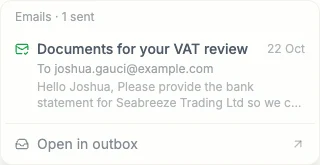
Use the email history to check what was sent before sending another request.
Sent means the mail server accepted the message. It does not prove that the client read it or that it reached their inbox. See email statuses.
6. Check activity and leave a handover
Open All at the bottom of the Job. Read the newest entries and use Show more where offered to see older ones. Use Comments to find colleagues’ notes and add your own handover.
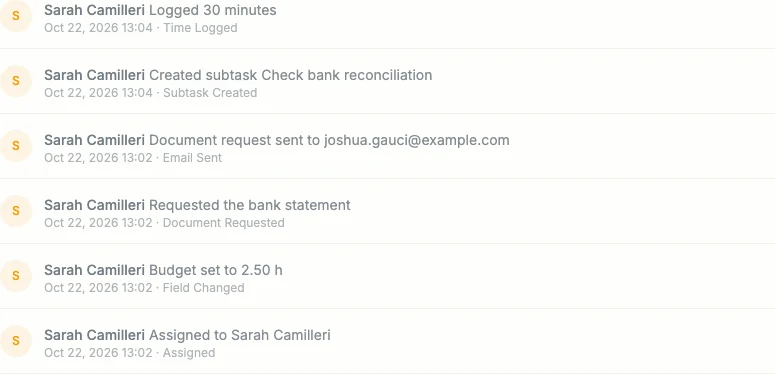
Activity brings assignments, changes, comments, time, and email outcomes together, with the person and time where recorded.
For example: Invoice totals checked. Waiting for the missing bank statement. Then request the missing document, or continue the work. Change the work state only when it reflects what has actually been done.