Create and issue bills
Follow the fees from client setup to an invoice reviewed and issued through Xero.
Select a screenshot to open it full size in a new tab.
On this page
Before you begin
Billing must be enabled for your firm. You need the appropriate Billing access, a working Xero connection, and completed Billing settings. Access to Fees and access to Billing are separate.
Ziffa prepares invoice drafts. Your team reviews them, then issues them through Xero. Issuing creates the invoice in Xero. Xero is currently the only connection used to issue invoices. Other accounting connections do not offer invoice issuing.
1. Set the client’s fees
While adding a client, select its Services in Services & Proposal. The fee, VAT, and line items start from the Service. Read Default Fee, Tax Rate, and Default line items if you need to understand a value.
- Check the fee and VAT for each Service.
- Keep the default amounts or enter the agreed client-specific fees.
- Check any fee line items, additional fees, and discounts.
- Where Billing is available, read the billing sentence on the Service. Billed by its frequency, billed on deadlines, and billed manually match the Service’s trigger. Change it here only for this client. Billing starts on shows the month, or asks you to choose one.
- If the trigger is Deadline, give every fee line the correct Bill when mapping. This connects it to the relevant Job Template.
- Review and save the client.
Saving a client or sending its proposal does not issue an invoice.
2. Understand when a draft is created
| Billing trigger | What to expect |
|---|---|
| No billing trigger | No automatic Service invoice draft. A fee can still appear on the proposal. |
| Service frequency | Charges become due according to the Service frequency and the billing start. Due Services for the Entity are grouped into the applicable monthly draft. |
| Deadline | Mapped fee lines become eligible when the scheduled Job falls within the configured invoice-draft lead time. |
Frequency billing charges the full fee; it does not automatically reduce a partial first month. Read Billing starts before choosing that month.
The app currently uses Deadline for Job-based billing. A Job becoming eligible for billing does not require it to be marked Completed.
If Billing setup required appears, finish the fee-line mappings before expecting automatic Job-based drafts.
3. Generate and find the draft
- Open Billing.
- Select Generate to run draft generation now rather than wait for the scheduled run.
- Select the Draft status and find the Entity.
- Select the eye icon (Review).
Generate creates or refreshes eligible drafts. It does not issue or email them. Changing an unissued frequency-based draft through generation can change its lines, so review it again before issuing.
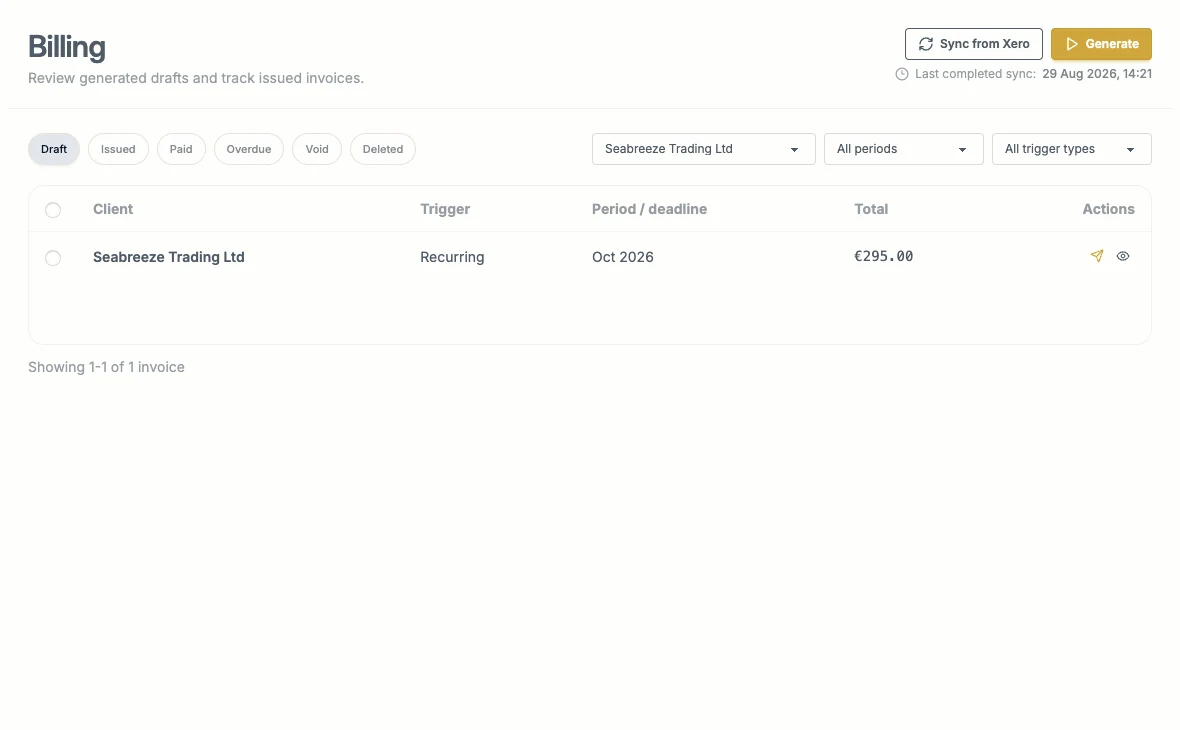
Find the Draft and select the eye icon (Review). Generate prepares drafts; it does not issue them.
4. Review and issue
Check the Entity, billing period or Job, quantities, prices, discounts, VAT, revenue accounts, and total.
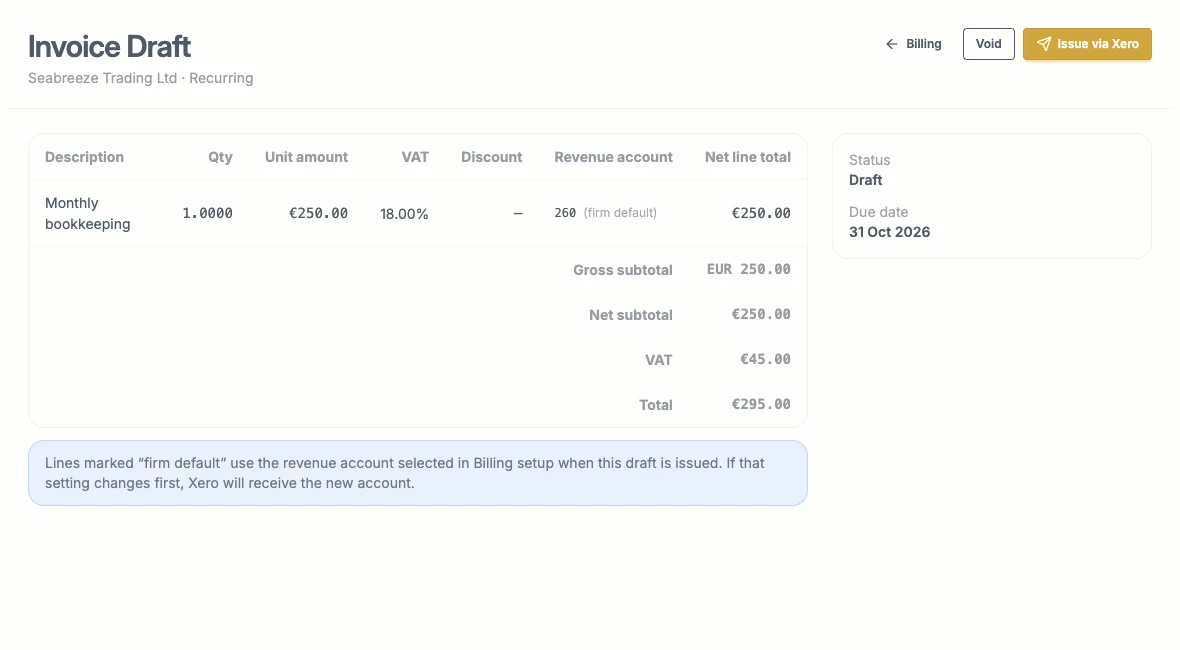
The example is still a Draft. Check the €250 fee, €45 VAT, and €295 total before selecting Issue via Xero.
Select Issue via Xero only when these are correct. This creates the invoice in the firm’s selected Xero organisation and records its Xero number and link in Ziffa. Ziffa also attempts to file the invoice PDF in the Entity’s Billing folder.
If issuing refreshes changed account information and asks for another review, check the refreshed draft before trying again.
5. Check delivery and status
Use Open in Xero to inspect the issued invoice. Use the available send or reminder action when you want Xero to email it. Issuing and emailing are separate actions.
- Draft: not issued yet.
- Issued: created in Xero.
- Paid or Overdue: status synchronised from Xero.
- Void: cancelled before issue or voided through Xero, depending on the stage.
A draft can be voided locally. Voiding an issued or overdue invoice affects Xero. Paid invoices cannot be voided here; handle a credit note in Xero.
If the invoice exists in Xero but the PDF is missing, use Refresh PDF. Do not issue a second invoice to solve a filing problem.
To change fees that are already assigned, before the next draft is generated, follow Adjust client fees. That flow previews the change and attempts to notify the main Contact before applying it. It does not issue an invoice.