Connect SharePoint or OneDrive
Connect Microsoft storage, choose the correct location, and check the root folder.
Select a screenshot to open it full size in a new tab.
On this page
You need access to manage storage connections and an appropriate Microsoft account. Check the firm’s intended storage location before starting. Ziffa allows one storage provider at a time; do not disconnect an existing provider simply to follow this example.
1. Choose Microsoft storage
- Open Settings → Integrations.
- Select Add Storage Provider.
- Choose Microsoft SharePoint, then select Connect.
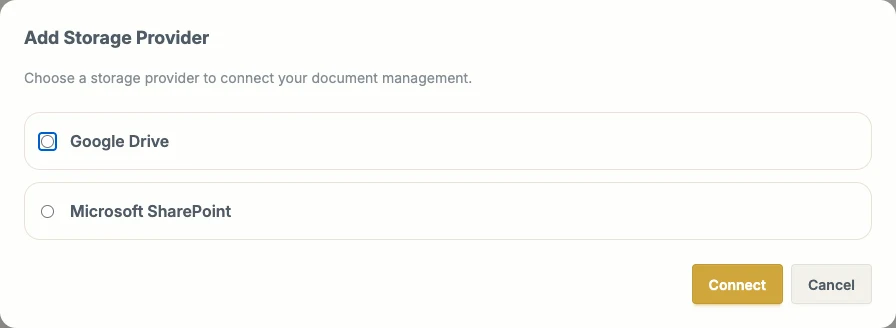
Choose Microsoft SharePoint for the Microsoft connection. The next Ziffa screen distinguishes a SharePoint site from OneDrive.
2. Choose SharePoint or OneDrive
For a SharePoint site, enter the SharePoint Site URL, such as https://harbour.sharepoint.com/sites/Accounts. Use the site’s URL rather than an individual file link.
For the personal OneDrive location offered by the connection, leave the site URL blank. Select Continue to Microsoft.
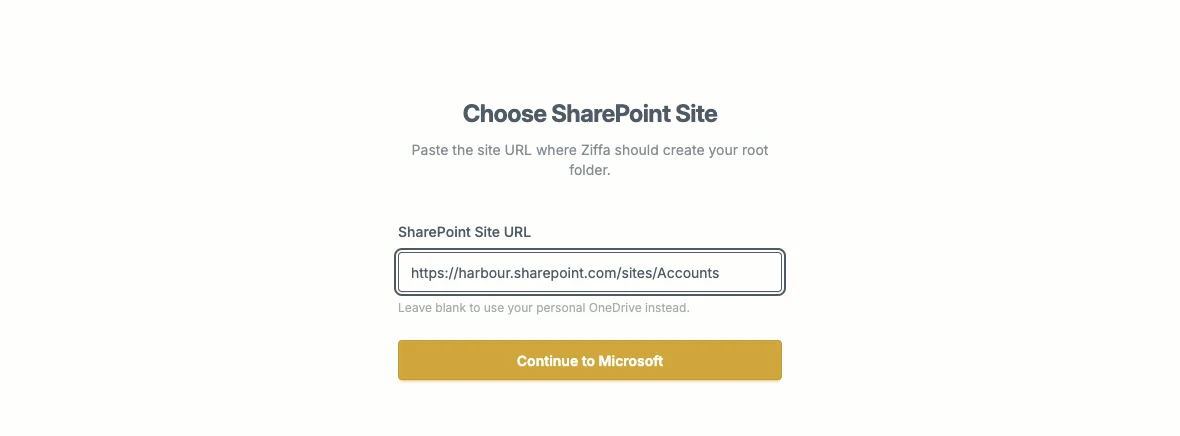
Enter a site URL for SharePoint, or leave it blank for OneDrive as described on the screen.
Sign in to the intended account and review Microsoft’s access request. Your organisation may require administrator approval. Return to Ziffa after authorisation. These external sign-in screens depend on your organisation and are not reproduced here.
3. Set the root folder
When the Setup Folder screen appears, enter the firm’s intended root-folder name and select Create Folder & Finish. This is the parent location for Ziffa’s client folders.
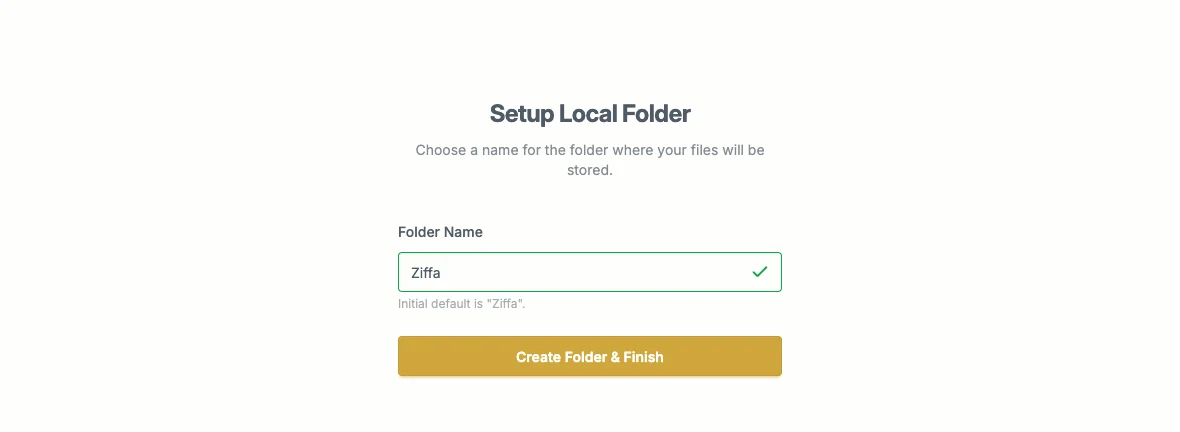
The root-folder step follows authorisation. This example shows Ziffa’s setup form, not a completed Microsoft sign-in.
4. Check the result
Back in Integrations, check that the Microsoft SharePoint row shows the intended Root Folder and an appropriate status. Use the folder action to inspect the destination where available.
Continue with Collect client documents and Document Filing settings. A connected provider does not guarantee the contact can already open a shared folder.
A Connected status needs no action. Ziffa renews routine access automatically.
For Reconnect required, select Reconnect SharePoint and authorise the intended Microsoft account again. Colleagues who can reconnect receive an in-app notification and email. Saved filing work resumes after access has been checked. Keep the existing connection and avoid submitting the same files again.
See Connection problems and saved documents for other statuses and recovery steps.