Upload documents
Submit a client record from Documents, an Entity, or a Job and check its processing result.
Select a screenshot to open it full size in a new tab.
On this page
Use this when a colleague already has the file. To collect directly from a client, start with Collect client documents.
1. Open Upload document
You can open the same upload modal from:
- Documents, using its upload control. Select the correct Entity in the modal.
- The Entity’s dedicated page, using its document upload control. The Entity is already selected.
- Processing files → Upload file. This opens the same modal for another batch.
- A Job’s Documents → Upload control. Check the selected Entity and Service before continuing.
Do not use the Job’s Attachments area for a record that needs to be classified and filed.
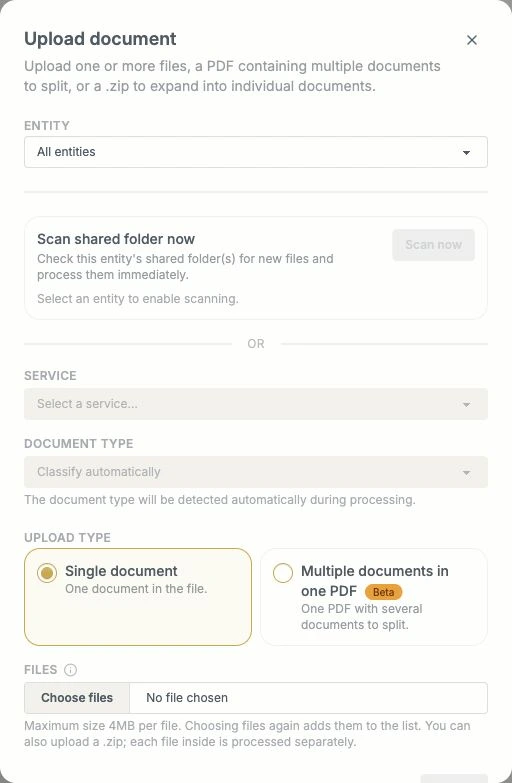
From Documents or Processing files, select the Entity first. The Service and document type controls then become available.
2. Choose the Service and document type
- Select the Service the file belongs to.
- Keep the default Classify automatically, or select a Document type if you already know it. The automatic choice is restored when you change the Entity or Service.
- Check that the Entity and Service match the original file.
If no active Service is available, check the Entity’s assigned Services. Choosing a type supplies a classification; it does not remove the need to check the document’s contents.
3. Choose the upload type and file
- Keep Single document when the file contains one document.
- Use Multiple documents in one PDF for a combined PDF that needs splitting. This option is marked Beta. A ZIP can also be expanded into individual documents as described in the modal.
- Choose one or more files. All files in this batch use the same Entity, Service, document type, and upload type. The default limit is 4MB per file, including a combined PDF or ZIP. Check the limit shown in the modal.
- Choosing files again adds them to the list. Use a file’s Remove control to leave it out. An oversized file blocks submission until you remove it or supply a smaller version.
- Select Upload when ready. Each file uploads separately.
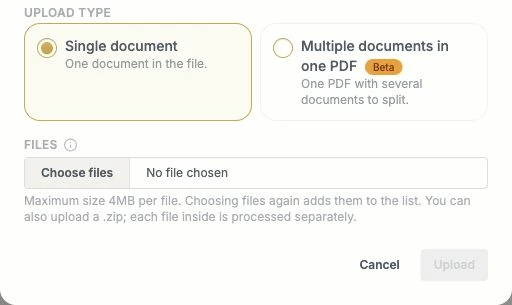
Choose files adds to the list. Check the per-file limit before Upload. The same controls are used from an Entity or a Job.
Do not submit the same file again just because processing has not finished. Check its existing row first.
4. Check the processing result
When every file uploads successfully, Ziffa opens Processing files. If some fail, the modal keeps the failed files and shows their errors; successful files have already been submitted. Check Processing files before retrying after a connection failure, to avoid duplicates. Expand the row’s activity timeline when you need to see which stage it reached. A completed item links to the document preview.
A processing failure is different from a file that completed processing but needs a human check. Read the reason shown before trying again. Continue to Review processed documents or Resolve documents needing attention.
Scan a shared folder now
In the upload modal, select the Entity and use Scan shared folder now → Scan now. This asks Ziffa to check that Entity’s monitored shared folders for files already placed there. It does not upload the file selected in the manual-upload fields.
Read the scan result, then check Processing files. If nothing arrives, verify the folder, Service, permissions, and connection before uploading a duplicate.