Entity dates and tax details
Understand why correct Entity details matter when Ziffa creates recurring Jobs.
Select a screenshot to open it full size in a new tab.
On this page
Why Ziffa needs these details
Different clients can have different financial periods and filing obligations. Ziffa uses the dates on an Entity when its Job Template schedules work relative to those dates.
A template may calculate a due date from:
- The Entity’s Period End.
- Its Financial Year End.
- Its Date of incorporation.
- A date stored in a custom field.
- Its next due-diligence review date, where that rule applies.
A fixed calendar schedule does not need all of these dates. Each template determines which date it uses.
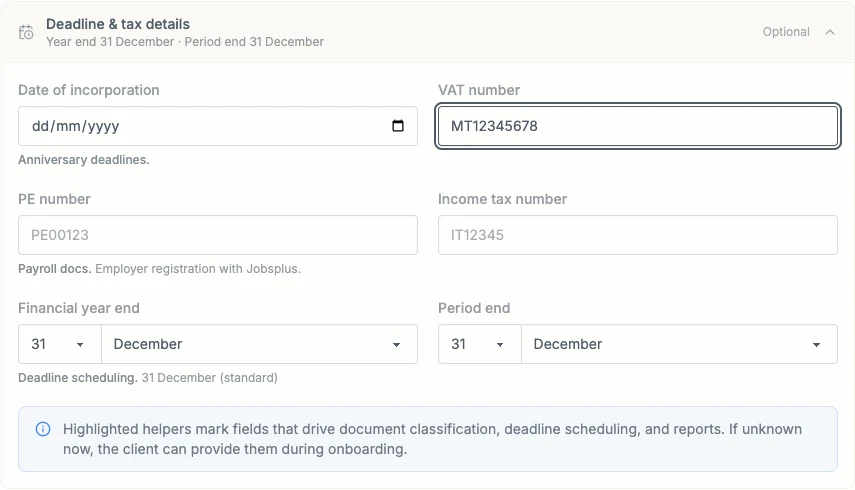
These fields sit under Deadline & tax details on the Entity. Financial year end and Period end are separate dates; check both against your records.
An example
Suppose a Job is due one month after the Entity’s financial year end. Seabreeze Trading Ltd has a 31 December year end, so that rule counts from 31 December.
Another Entity with a 30 June year end gets a different due date from the same rule. Offsets, recurrence, and month-end handling come from the template. Check the preview rather than estimating the date yourself.
What tax details do
Tax identifiers and relevant tax settings describe the Entity and support the firm’s work. They are not all scheduling dates.
Do not assume entering a VAT number creates every VAT Job. Ziffa must also have the correct Service assignment, applicable Job Template, onboarding status, and any date required by that template.
What happens if a date is missing or wrong?
A Job needing a missing date may not be generated. A wrong date can produce the wrong due date.
- Open the Entity and check its deadline and tax details against your records.
- Correct and save the relevant values.
- Review any schedule-change information the app presents before confirming changes to existing work.
- Check the affected Jobs after saving. Do not assume work already in progress has been moved automatically.
Read Job Template settings for schedule options and Work with recurring Jobs for the daily workflow.