Handle expiring documents
Correct missing dates, arrange renewals, or dismiss an expiry that needs no further action.
Select a screenshot to open it full size in a new tab.
On this page
Open Expiring Documents on the dashboard. In Expiry attention, choose Expired, Expiring within 90 days, or Missing/invalid date. Use Search filename or client to find a particular record. See Document expiry explained for what enters this queue.
1. Check the document and date
Select a document from the list. Compare the date in the original with the saved Expiry date under Review. Do not treat a missing saved date as proof that the document has expired.
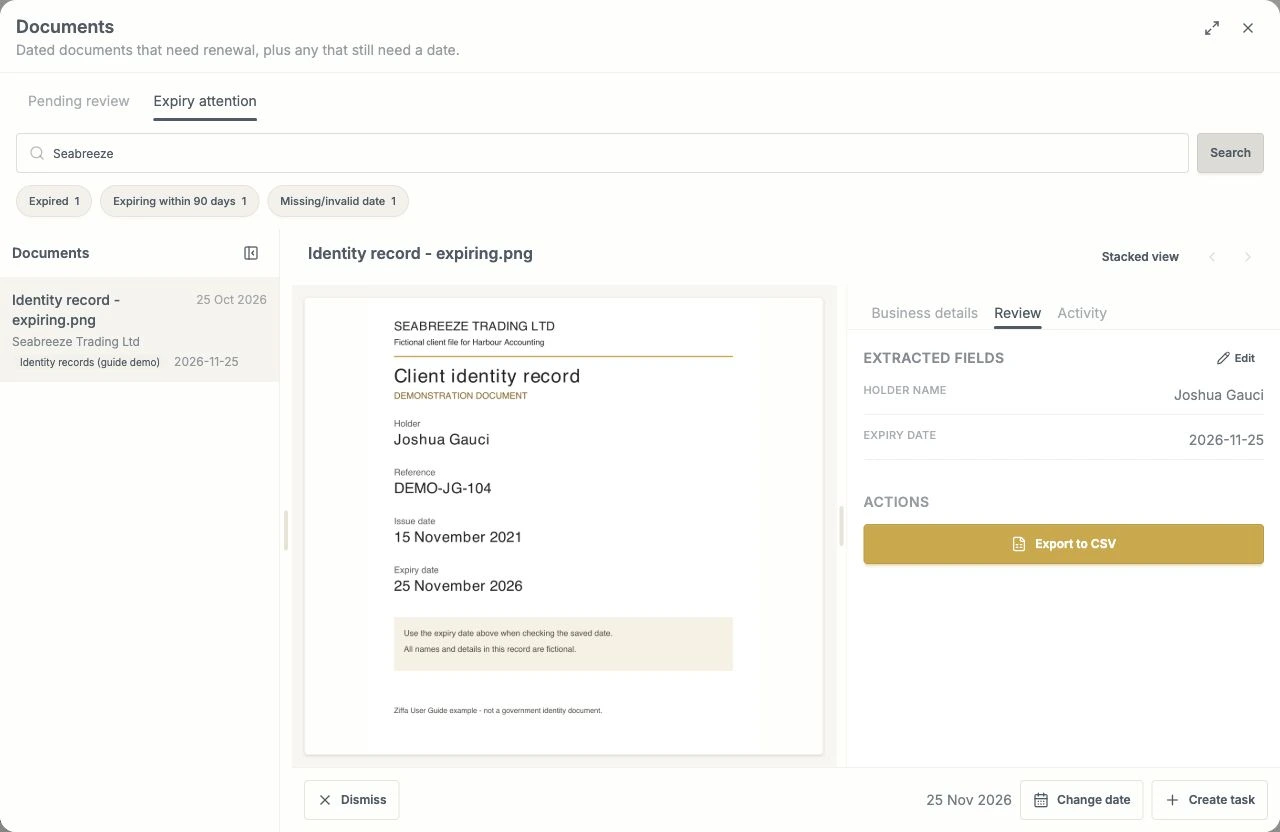
The example expires on 25 November 2026. Check the source and saved date before choosing an action.
2. Fix a missing or incorrect date
- Read the expiry date on the original document.
- For a missing date, enter it in the date field at the bottom and select Set expiry date.
- For an existing date, select Change date, enter the correct date, then select Save. Cancel leaves the saved date unchanged.
- Check the result. A past date puts the file in Expired. A date from today through the next 90 days puts it in Expiring within 90 days; a later date takes it outside that upcoming group.
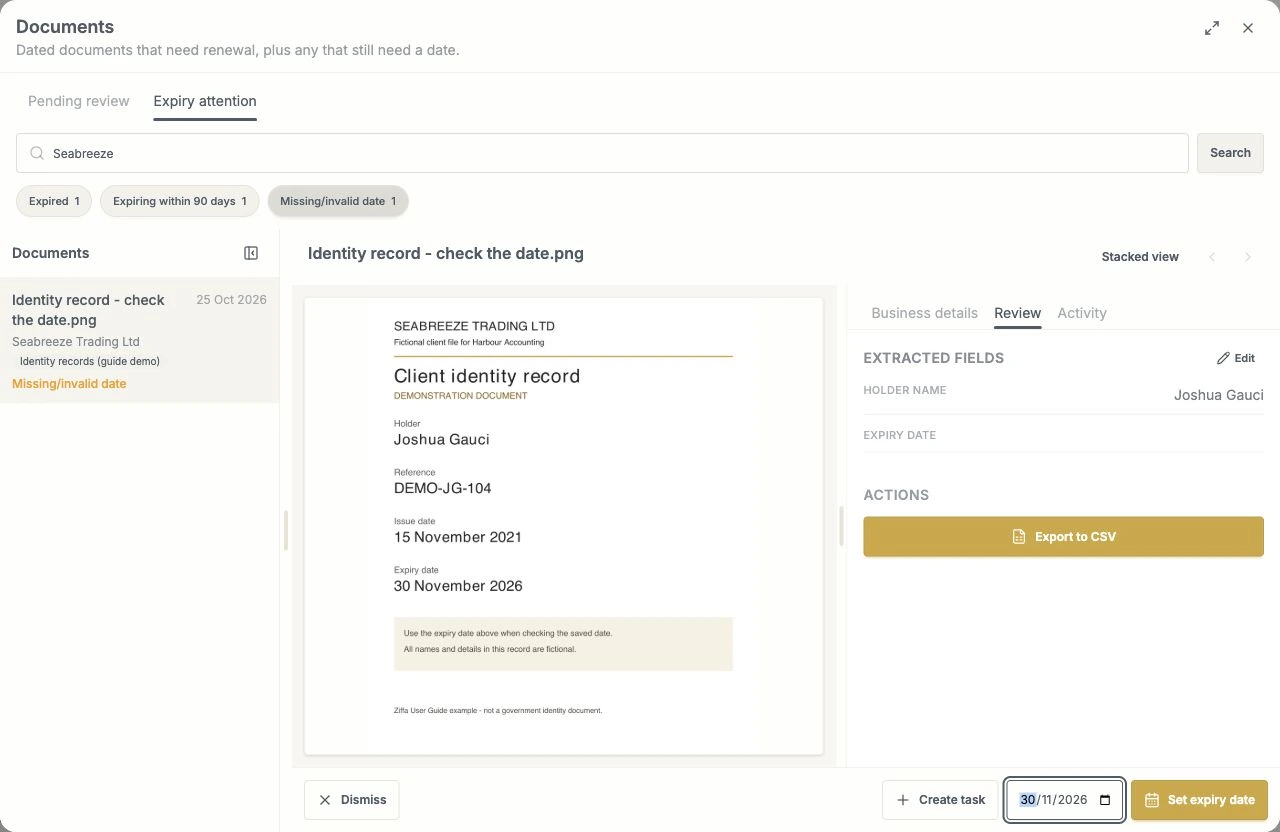
The source shows 30 November 2026. Enter that date rather than guessing from the upload date.
Do not enter a made-up future date to clear the queue. If the original does not provide enough information, arrange follow-up work instead.
3. Arrange the renewal
- Select Create task beside the document. If a follow-up already exists, select Open task instead.
- Enter a clear Title, such as Renew Joshua’s identity record. Add the replacement you need and any instructions in Description.
- Choose the Due date, Assignee, and Budget. Check the Entity and select the Service where appropriate. These are task details you choose; they are not automatically copied from the document’s expiry date.
- Check Attach this document to the task. It is selected by default and copies the source into the task’s Attachments. Clear it if a working copy is unnecessary. Attachments and filed Documents have different purposes.
- Select Create task to save. Check that the workspace offers Open task, then open it and request the replacement.
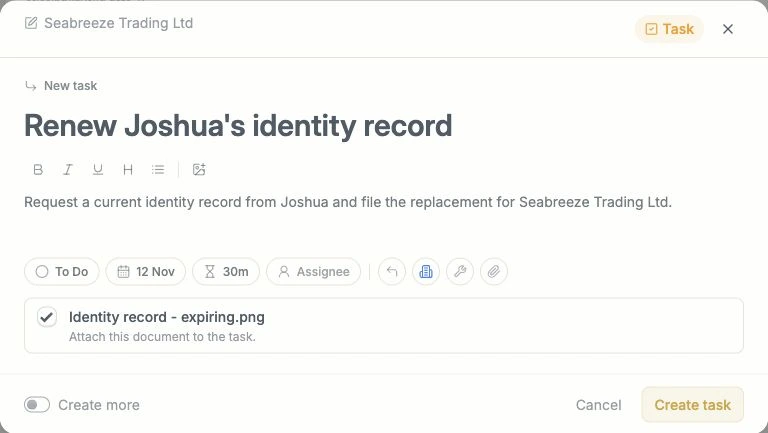
Create task opens a form so you can set the renewal work’s details before saving.
Creating this follow-up task does not send the client a request, replace the document, or clear its expiry alert. Use Open task to continue the existing work. You can also create follow-up work while a date is missing, if someone needs to investigate it.
4. Dismiss an expiry only when appropriate
Select Dismiss when the firm has decided that this expiry needs no further attention. Check that the item leaves the queue.
Dismissal does not delete the document, change its date, or make an expired document valid. The current interface has no undo-dismiss control. Use renewal work when a replacement is required.