Request missing documents
Check a Job’s requirements and send a clear document request to the right recipients.
Select a screenshot to open it full size in a new tab.
On this page
Before sending a request, check how the client will provide the files. A Job’s Documents section shows the records needed for that work.
1. Check what is missing
- Open the relevant Job from Tasks.
- Open its Documents requirements and check what has already arrived.
- Select the outstanding document types you want to request.
Requirements come from the assigned Service and applicable template. If the list is wrong, check Service document requirements rather than sending an unrelated request. Supporting Attachments do not satisfy these requirements.
2. Check the recipients and message
- Select Request to open the recipient check.
- Check the selected document types and people.
- Select Edit email to inspect or change the message and add any supporting email attachments.
- Check the collection instructions: a shared-folder link or the configured intake email address, where available.
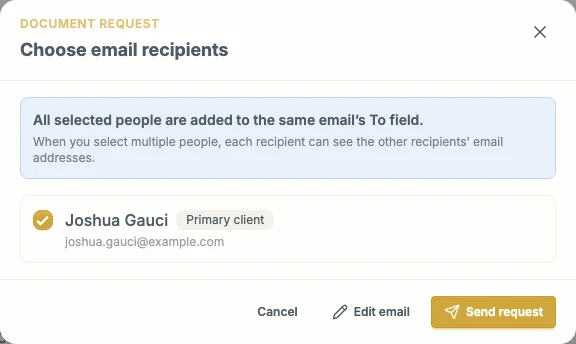
Request opens this check. Edit email opens the message; Send request sends it.
All selected people are added to the same email’s To field and can see one another’s addresses. Confirm that this is appropriate before sending.
3. Send and check the outcome
Select Send request when ready. Opening the form or changing a selection does not send it.
Check the Job’s activity and Emails history. A Document Requested entry records the request; the separate email outcome tells you whether sending succeeded. Resolve a reported problem before resending. Inside a Job explains the statuses.
For repeated automatic chases, configure client document reminders. These are separate from sending a request now.
4. Review what arrives
Follow incoming files in Documents → Processing files, then use Review processed documents. If the file needs a decision, follow Resolve documents needing attention.