Resolve documents needing attention
Work through Pending Review and choose whether to organise, follow up, or discard a file.
Select a screenshot to open it full size in a new tab.
On this page
Ziffa puts files that need a decision into Pending Review. This is different from checking a successfully processed document.
1. Open Pending Review and read the reason
Open the dashboard’s Pending Review workspace and select the document. Open Review to read why it needs attention. Check the original, Entity, Service, and selected type before choosing an action.
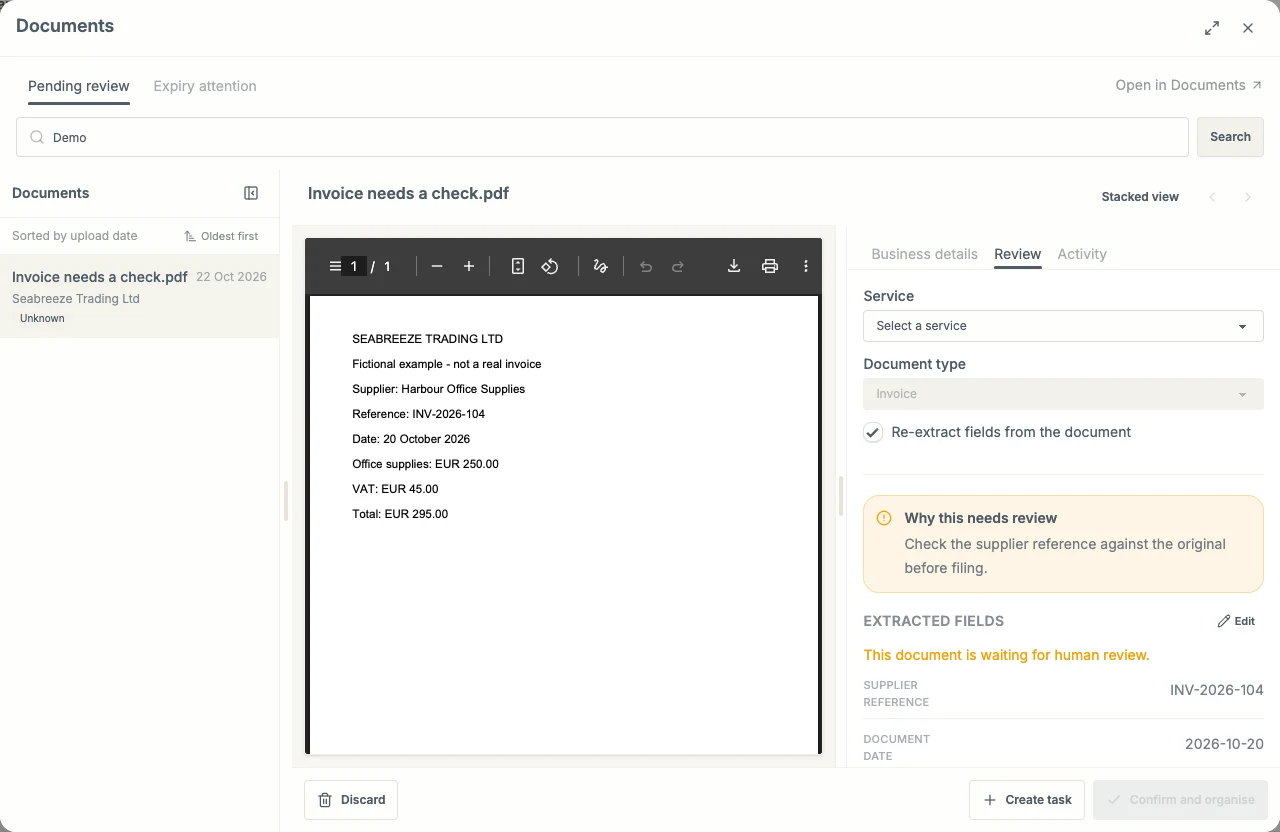
The Review tab explains the problem. In this example a person must check the supplier reference before filing.
2. Correct the type and values
- Confirm that the selected Service and document type describe the file.
- Choose the correct type if the classification is wrong.
- Use Edit to correct extracted values against the original, then save or cancel.
- Decide whether fields need to be extracted again.
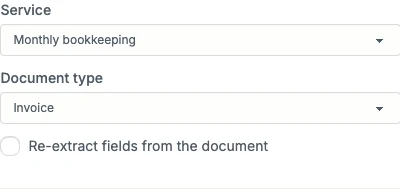
Keep the correct type and turn off re-extraction to preserve manual corrections. Changing the type always extracts fresh fields.
If the type stays the same, clear Re-extract fields from the document when the saved values are already right. Leave it selected when you want Ziffa to read them afresh. Save field edits before organising.
3. Organise a document that is ready
Select Confirm and organise. This starts processing and filing; it is not the final Reviewed checkpoint.
The document briefly shows Organising… and leaves the review queue while processing continues. Check the processing result. If it fails or still needs attention, it can appear in Pending Review again.
Once successfully filed, follow Review processed documents to finish the human check where required.
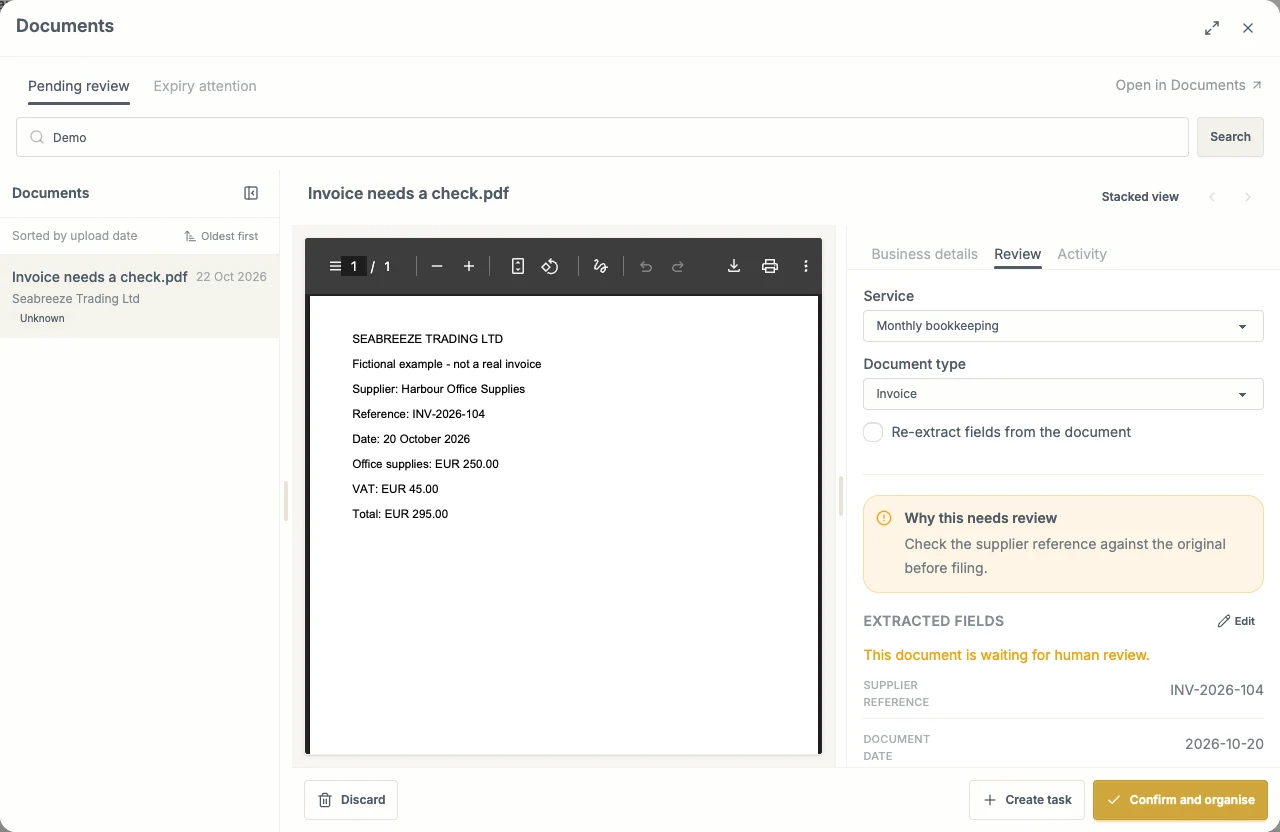
With the Service and type selected and field edits saved, Confirm and organise is available. It starts filing rather than marking the document Reviewed.
4. Create follow-up work when something is missing
For an unreadable file, missing signature, or correction needed from the client, select Create task in the dashboard workspace. Enter a clear title, choose the responsible colleague and due date, and check the source-document attachment option before creating it.
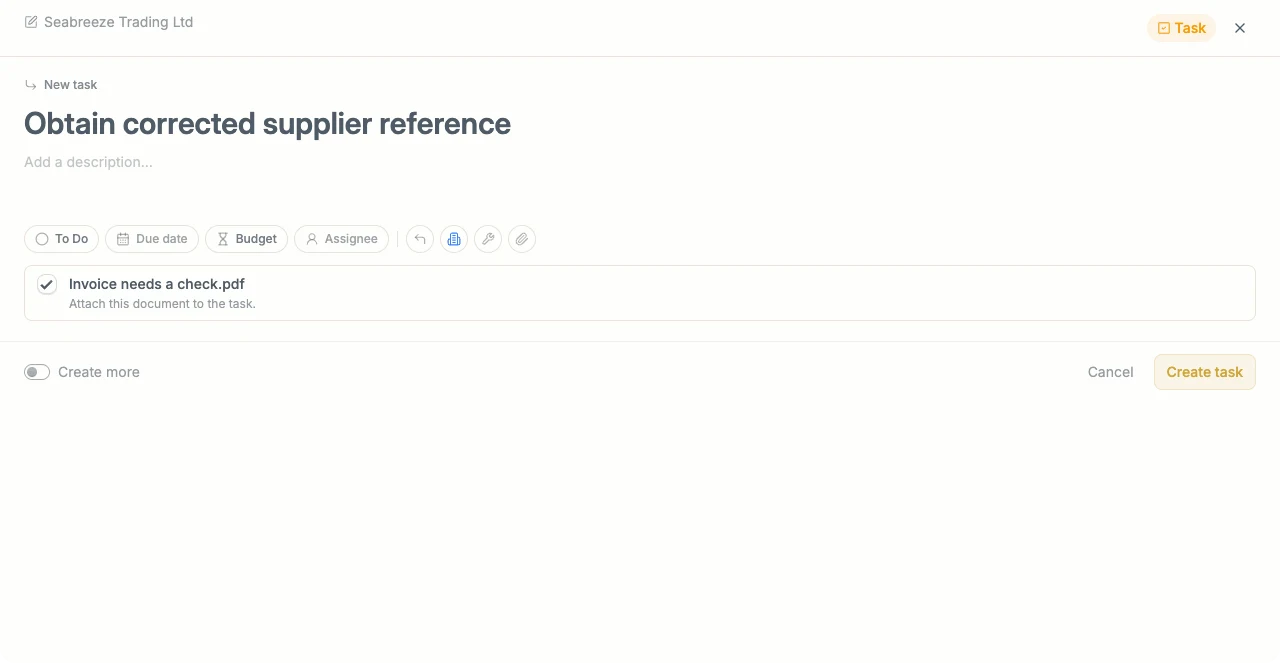
Create task records the follow-up. It does not organise the document or remove it from Pending Review.
Use Open task when a follow-up already exists. From that Job, request a corrected or replacement document.
The original stays in the review queue. Decide whether to keep it there while investigating, organise it after correction, or discard it if it should not be retained.
5. Discard only an unwanted file
Select Discard when the file should be removed. Read the in-place confirmation, then select Yes, discard to remove it from storage, or Cancel to keep it.
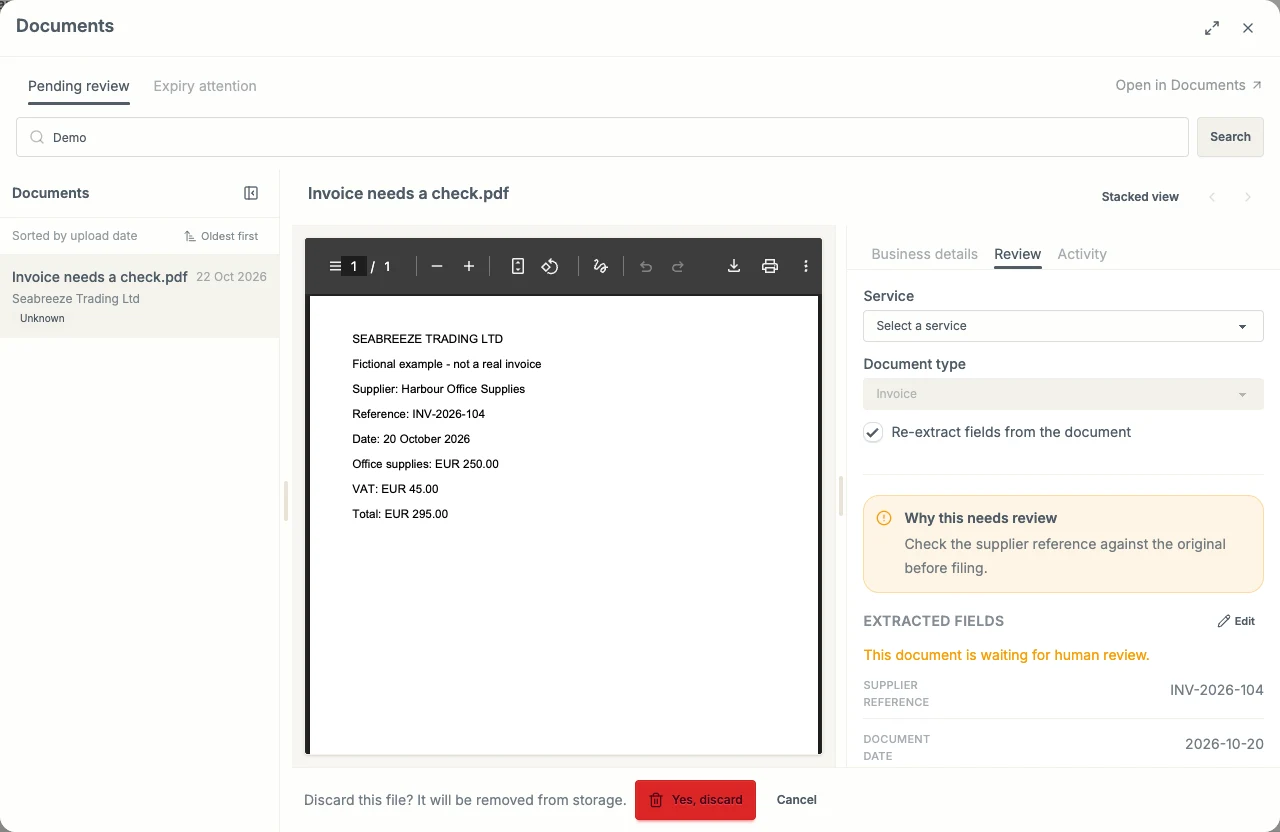
The first selection asks for confirmation. Yes, discard removes the stored file.
Discarding a file is different from dismissing an expiry alert. If you need a replacement, create the follow-up first so the team has a record of what to obtain.
See Document review actions for a comparison of the available actions.