Send a proposal or engagement document
Choose approval, signature, or email, and check exactly what will be sent.
Select a screenshot to open it full size in a new tab.
On this page
Choose the document and the action
You can prepare a proposal while adding a client, or use the document actions available from the saved Entity. Use the appropriate proposal or engagement template for the stage you are at.
- Turn on document preparation where it is optional.
- Choose the template. Check the generated document, fees, and Entity details.
- If asked, choose the issuing company. This is the legal identity appearing on the document. Ziffa asks when the Entity’s Services use more than one registered company. One shared identity is selected for you.
- Choose Send For Approval, Send For Signature, or Send Email, as offered by that template.
- Check the recipients before selecting the final action.
Only actions configured for the chosen template appear. If no suitable template is available, use Request a Template or ask the colleague responsible for the firm’s templates.
Send for signature
Choose this when the document needs to be signed.
- Select the main contact and any additional signers required.
- Choose Create & review setup in the onboarding wizard, or Review setup for a prepared signing draft, to check the signing setup before sending.
- Review the signature fields and which person signs each one. Adjust them in the signing editor if needed.
- When ready, use Send for signature. The onboarding shortcut Create & send for signature sends without opening the editor first.
- Check that the request shows it is waiting for signatures.
Closing the setup editor keeps the prepared draft. It does not mean the request has been sent. If sending fails, check the status before retrying.
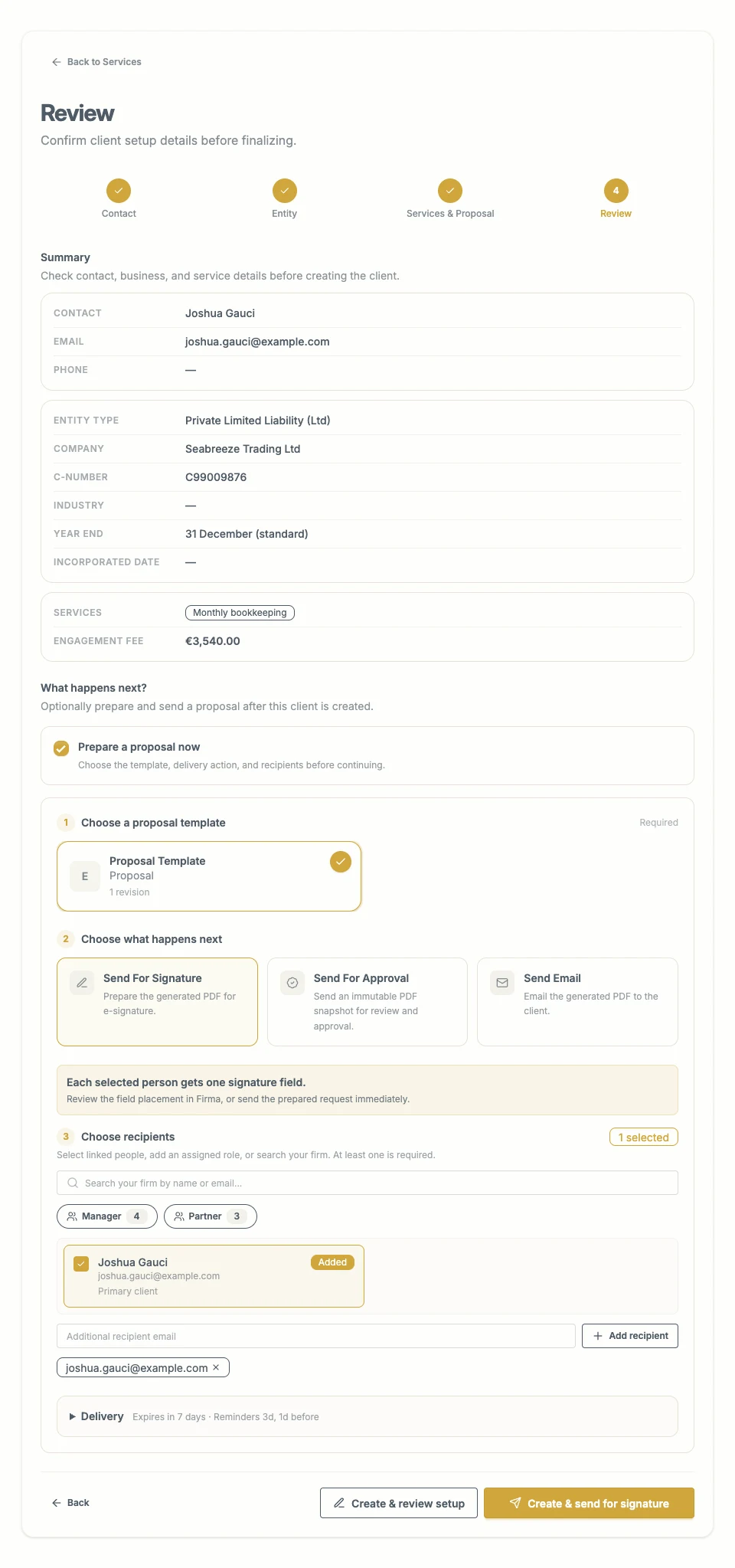 Use the review-setup option to check signature placement before the final send.
Send for approval
Choose this when you need an approval decision rather than a signature.
- Select the recipients.
- Choose Everyone must approve or Any one person may approve.
- Confirm the final approval action.
- Each recipient receives the PDF and their own review link.
- Follow the approval status on the document.
With All recipients, Ziffa waits for everyone. With Any recipient, the first approval completes the request and the remaining pending links are withdrawn.
The request uses a copy of the PDF at the time it is sent. Editing the template later does not change the document already sent for approval. Approval records a decision; it is not an electronic signature and does not, by itself, complete client acceptance.
Send by email
Choose this when you want to deliver the generated document as an attachment without requesting an approval or signature.
- Choose Send Email and select the recipients. You can choose linked contacts, search your firm, or add an email address.
- Check the generated document and the selected email addresses.
- If needed, enter a message. This replaces the standard email text; the document remains attached.
- Confirm the final send.
- Check the action’s delivery status.
This action sends the PDF to the selected recipients. A successful email does not mean the document was approved or signed.
After sending
Check the document’s current status before sending again. A prepared draft, a sent request, an approval, and a completed signature are different stages.
Continue the firm’s due diligence and acceptance process as required. If an expected option is missing, check your access to Fees, the selected template, and the contact’s email address.