Connect Google Drive
Connect the firm’s Google account and check where Ziffa will create client folders.
Select a screenshot to open it full size in a new tab.
On this page
You need access to manage storage connections and the firm’s intended Google account. Ziffa allows one storage provider at a time. If one is already connected, confirm the firm’s setup rather than disconnecting it to follow this example.
1. Choose Google Drive
- Open Settings → Integrations.
- Select Add Storage Provider.
- Choose Google Drive, then select Connect.
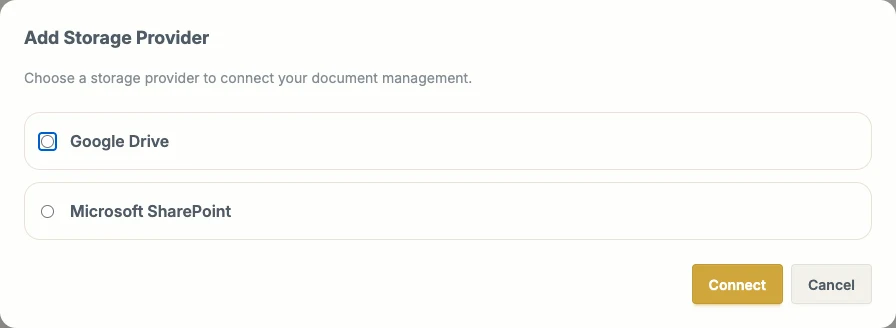
Choose Google Drive to start the Google authorisation flow.
2. Authorise the correct account
Sign in to the firm’s intended account, review the access requested by Ziffa, and complete the provider’s authorisation. Your organisation may need to approve access. Return to Ziffa when the provider sends you back.
The Google sign-in and approval screens depend on the account and are not reproduced here. Do not assume a personal account is the correct firm connection just because it is already signed in.
3. Set the root folder
When the Setup Folder screen appears, enter the firm’s intended folder name and select Create Folder & Finish. Ziffa uses this as the parent location for managed client folders.
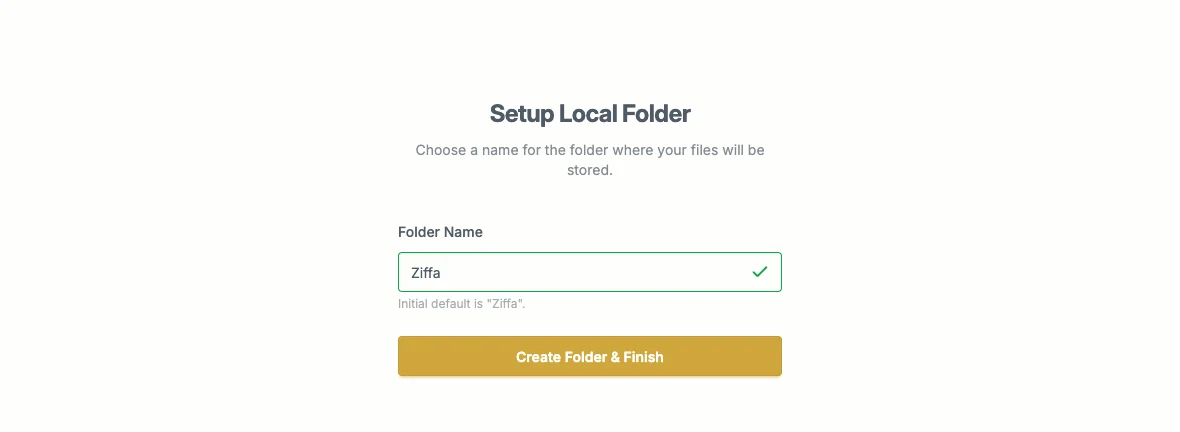
Choose the folder name deliberately. Client folders are created beneath this root.
4. Check the connection and filing
Back in Integrations, check the Google Drive row, Root Folder, and status. Inspect the root using its folder action where available.
Check Document Filing settings, then Collect client documents. Confirm that the intended client can access any shared-folder link; a Google email address alone is not proof of access.
A Connected status needs no action. Ziffa renews routine access automatically.
For Reconnect required, select Reconnect Google Drive and authorise the intended account again. Colleagues who can reconnect receive an in-app notification and email. Saved filing work resumes after access has been checked. Keep the existing connection and avoid uploading the same files again.
See Connection problems and saved documents for other statuses and recovery steps.