Configure client document reminders
Choose whether and when a Job Template reminds the client, and check where the message directs them.
Select a screenshot to open it full size in a new tab.
On this page
Current app label: open Settings → Firm Deadlines to edit Job Templates.
Use automatic reminders for repeat document collection. To send a request now, follow Request missing documents.
1. Open the relevant template
Find the template for the Service and select Edit. Check its schedule and client scope before changing reminder settings. Reminders are configured per template because different obligations need different lead times.
2. Choose the reminder levels and days
Find the client-reminder controls. Enable or disable client reminders for this template, then choose which levels to use and how many days before the due date each should send.
| Level | Purpose |
|---|---|
| Upcoming Deadline Alert | An early heads-up. |
| Upcoming Deadline Warning Alert | A closer reminder. |
| Upcoming Deadline Critical Alert | A final reminder as the date approaches. |
Each enabled level must be closer to the due date than the previous level. Check the values rather than copying an annual filing’s timings to a monthly payroll Job.
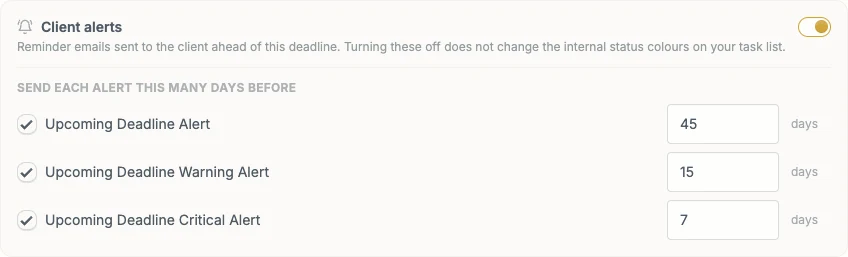
The template controls whether and when its reminders send. Wording and firm-wide email controls are separate.
Save the template and complete Review affected tasks → Confirm and save if a schedule change requires that review. Saving does not mean an email has just been sent.
3. Check wording and firm-wide controls
Open Settings → Automations to review the reminder wording and the firm’s automatic-email setting. A firm-wide restriction can suppress client messages even when a template enables them.
For the collection link, check folder sharing: messages can point to the shared Service folder when shared-folder collection is enabled, or to the supported Entity/Service intake email address when appropriate.
An intake email link tells the client where to send files. It is not a link to the sent-message history inside Ziffa. Check the message preview and retain the needed collection instructions when editing wording.
4. Check the outcome on a Job
Open an affected Job and inspect Emails and its activity. Use the outbox to check Pending, Sent, Failed, or Skipped outcomes and the recorded recipients.
The daily reminder run sends the most urgent eligible level, at most once per level for that Job. A missed run can catch up later. Closed work and other send conditions can prevent a reminder; read the recorded explanation before trying to resend.
See Inside a Job: email history for status meanings.