Adjust client fees
Preview a bulk fee change, notify clients, and apply it immediately or from a chosen month.
Select a screenshot to open it full size in a new tab.
On this page
Use a fee adjustment to raise or lower the Service fees already saved on client Entities. For example, Harbour Accounting could increase selected monthly bookkeeping fees by 10% from November.
Before you begin
You need Billing management access and access to view Fees. The firm’s Billing add-on must be enabled.
An adjustment changes client fees and their fee-line prices. It does not change the Service’s default fee, additional fees, or discounts. It does not create or issue an invoice.
1. Draft the change
- Open Settings → Billing.
- Under Fee adjustments, select Open.
- Select New adjustment.
Enter the change
- Set Type to Percentage or Fixed amount.
- Choose Increase or Decrease under Direction.
- Enter a positive Amount. For example, enter 10 for a 10% increase. A percentage decrease must be less than 100%.
- Choose Starts on. Apply when issued changes fees when you issue the notice. A future month keeps the current fees until that month begins. Choosing the current month also applies the change when issued.
- Select Round to whole amounts if you want each new total fee rounded to a whole currency amount.
For a €250 fee, a 10% increase gives €275. A fixed €10 increase gives €260. These amounts exclude VAT. Rounding applies to the total fee; individual fee-line prices can still contain decimals. A fixed decrease that exceeds a fee reduces it to zero. A zero total clears that assignment’s fee lines, so check its billing setup before using this to remove a charge.
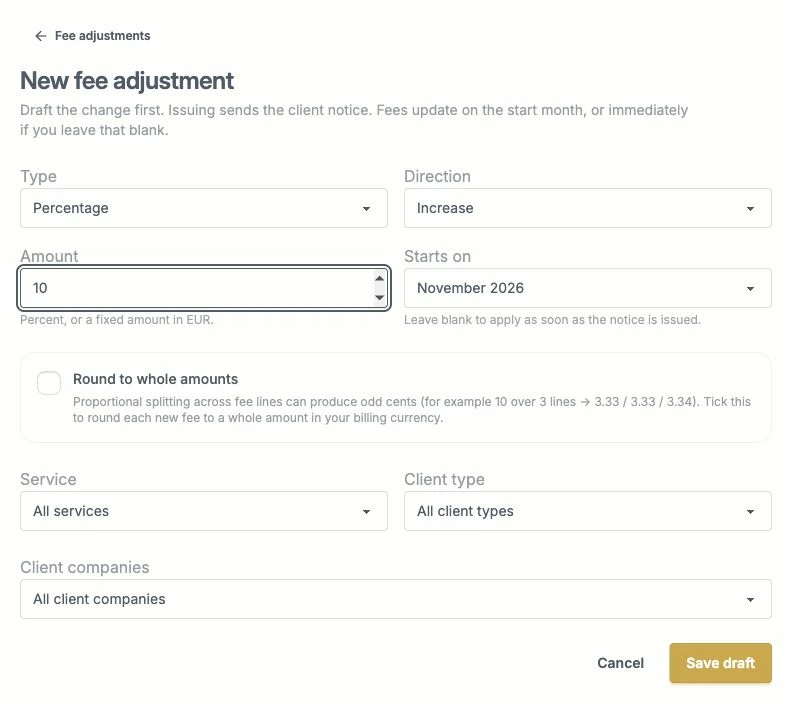
Choose the change and start month, then narrow the affected clients before saving a draft.
Choose which fees to change
The filters work together:
| Field | What to choose |
|---|---|
| Service | One Service, or All services. |
| Client type | One type, or All client types. |
| Client companies | All client companies, Only selected client companies, or All except selected client companies. |
| Select companies | For either selected-company option, search and tick the Entities to include or exclude. Select visible and Clear visible affect the search results currently shown. |
All client companies does not mean only Active clients. Check the preview carefully if your firm has Prospect, Rejected, or Terminated Entities with fees still assigned.
Select Save draft. Saving calculates the preview. It does not send notices or change fees.
2. Check the preview
Check each Client company, Service, Current fee, New fee, and Change. The change applies to each matching Service assignment, rather than once per client.
- Fees in a different currency are marked Skipped — different currency and stay unchanged. There is no currency conversion.
- If a fee changes after you save the draft, a warning blocks Issue. Select Recompute to calculate the draft again from the current fees and matching clients, then review it again.
- If the preview is empty, no eligible assigned fees were included. Check your filters and the clients’ fees. To change the filters, cancel this draft and create a new one.
Check that every intended fee is present. A fee can be left out if Ziffa cannot split the new total across its existing lines. Check those lines before proceeding if an expected fee is missing.
3. Issue the notice
Issue attempts to email clients and can change fees immediately. Check the recipients, amounts, and start month before selecting it. An email failure does not stop the adjustment from being issued or applied.
Select Issue when the preview is correct. Ziffa attempts one notice per main Contact, listing that Contact’s affected Entities and Services. The notice includes the old and new fees and the start month. You are copied if your account has an email address. Supporting Contacts are not automatically copied.
Check the confirmation’s sent count. Sent means the mail server accepted the message; it does not confirm that it reached the client’s inbox. A Contact with no email address is skipped. Issued and Applied describe the adjustment, not confirmed email delivery. Follow up separately if a client did not receive the notice. You can review the notice wording in Email templates.
- For Apply when issued, or a month that has already begun, Ziffa applies the fees immediately and shows Applied.
- For a future month, it shows Issued. The scheduled process applies the change once that month begins.
Check the applied fees and next bill
Open the adjustment again after it applies. Check the result on each row, then check the Service fee on the Entity.
If a fee changed after the notice was issued, that row becomes Skipped — fee changed. Ziffa leaves the newer fee in place. An adjustment can show Applied while containing skipped rows; check those individually.
A newly generated invoice draft uses the fees in place when it is created. Existing Job-based drafts and issued invoices are not rewritten by a fee adjustment. Unissued frequency drafts can be refreshed by generation. Follow Create and issue bills and review the amount before issuing.
4. Apply early or cancel
While the adjustment is Issued:
- Apply now applies it immediately, even if its start month is still ahead. It does not send a revised notice.
- Cancel stops it from applying. It does not recall the notice or send a cancellation email. Tell affected clients separately if needed.
You can also cancel a Draft. Once an adjustment is Applied, this screen cannot undo it. Correct one Entity’s fee or prepare another adjustment.
Check the list
| Status | What it means |
|---|---|
| Draft | Preview saved. No notice attempted and no fees applied. |
| Issued | Notices attempted. The adjustment is waiting to apply. |
| Applied | Application finished. Check individual rows for skipped fees. |
| Cancelled | The adjustment will not apply. Any earlier notice remains sent. |
Starts shows the chosen month or On issue. Lines counts the assignment rows in the adjustment; it is not a count of delivered emails.