Plan next week's work
Assign next week’s work, set budgets, and compare workloads across the team.
Select a screenshot to open it full size in a new tab.
On this page
Current app label: open Tasks to plan Jobs. Budgets are measured in hours, not fees.
1. Find next week’s work
- Open Tasks.
- Start from All tasks so an unrelated saved view does not leave hidden restrictions.
- Keep Open only selected.
- Open the filters and choose Next week for the due-date range.
- If you want unfinished work only, also select the relevant unfinished work states. Open only can retain recently updated completed work.
- Choose Board view, then group by Assignee.
Check the filter chips before assigning work. This is a view of Jobs due next week; it is not a calendar of every hour someone has available.
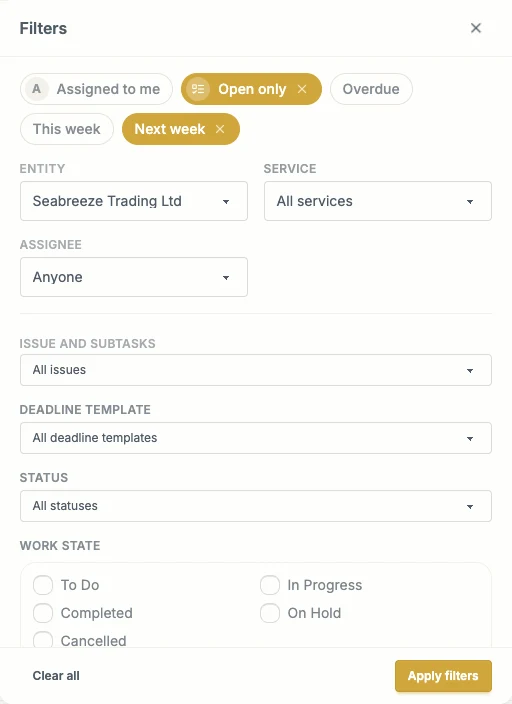
Open only and Next week are selected. The Entity filter limits this example to Seabreeze Trading Ltd; leave Entity unrestricted when planning the whole firm.
2. Assign the unassigned Jobs
Find the Unassigned column. Review each Job’s Service, due date, required documents, and estimated work.
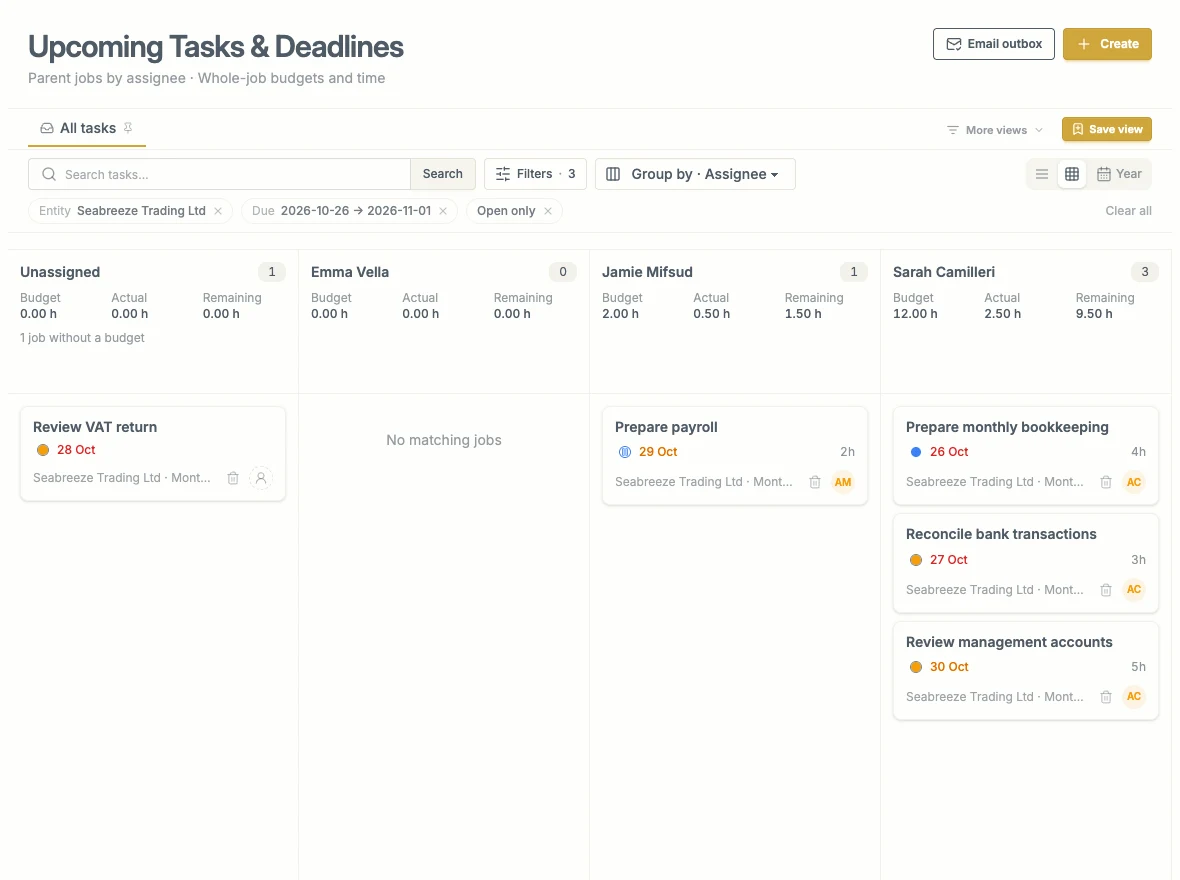
Start with Unassigned, then compare the Budget figures. In this example Sarah has 12 hours and Jamie has 2; the VAT review still needs an assignee and a budget.
Move a Job to the right colleague’s column. You can also select the small person or initials button on the card, search for a colleague, then select the tick beside their name. Check that the card moves and the totals update.
Moving a card between assignee columns changes its assignee. It does not change its work state or due date. An assignment that fails leaves the Job with its previous assignee.
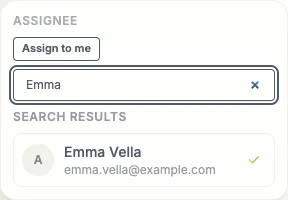
Search for the colleague, then select the tick beside their name to save the assignment.
3. Give every parent Job a budget
Open each Job that has no budget and select its budget control. In the budget picker, enter Hours and Minutes, then select Save budget.
For work expected to take two hours and thirty minutes, enter 2 Hours and 30 Minutes. The total appears as 2.50 h. Use the budget for the whole parent Job, including work carried out through its subtasks. Subtasks do not have a separate budget.
Do not use zero to mean “not estimated”. Check the column’s jobs without a budget message before treating its total as complete.
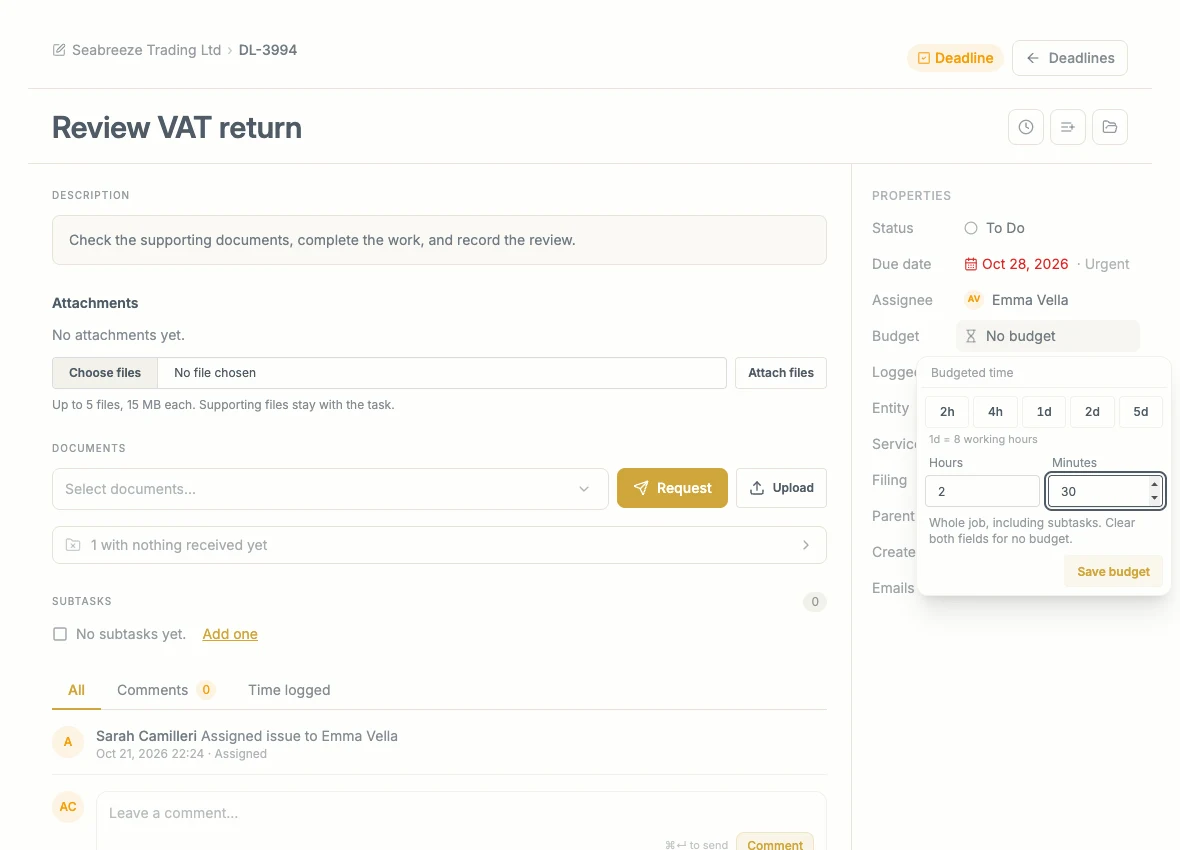
The Budget control opens this picker. Enter Hours and Minutes, then select Save budget.
4. Compare and balance the workload
Each colleague’s column shows:
| Figure | Meaning |
|---|---|
| Budget | Budgeted hours for the matching Jobs. |
| Actual | Time already logged against that work. |
| Remaining | Budget remaining according to the logged time. |
| Over budget | Time beyond the budget, where applicable. |
Move suitable Jobs between colleagues until the workload is reasonable. Consider skills, leave, deadlines, and work outside this filtered view. A column total is not a person’s available capacity.
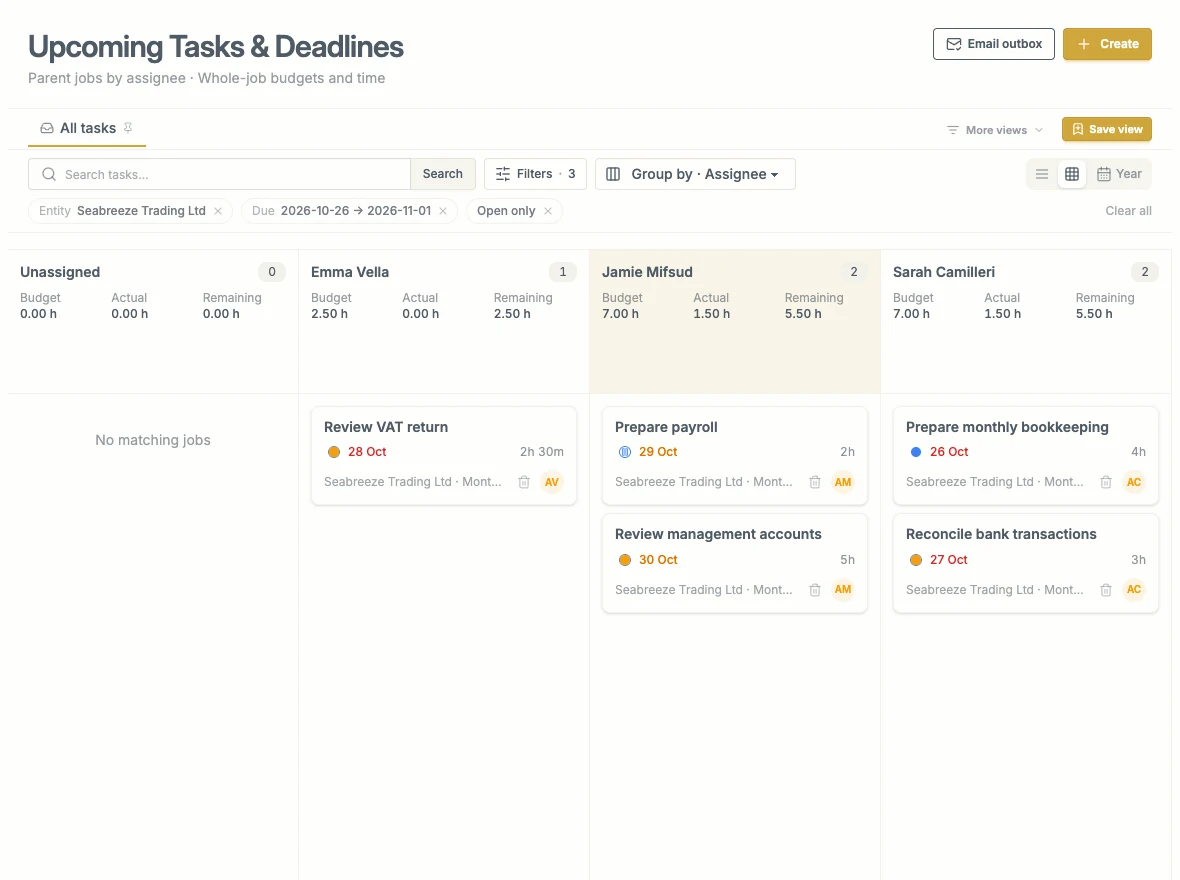
After assigning the VAT review and moving the management-accounts review, Jamie and Sarah each have 7 budgeted hours. Emma has 2.50 hours. Check the people’s actual availability before treating the plan as final.
Column totals cover all matching Jobs, even when only some cards are visible. Use Load more in a column, or the page controls where shown, before assuming you have seen every Job.
5. Save the planning view
Save the view as Next week — by assignee. Reopen it during the week to check new work and missing budgets.
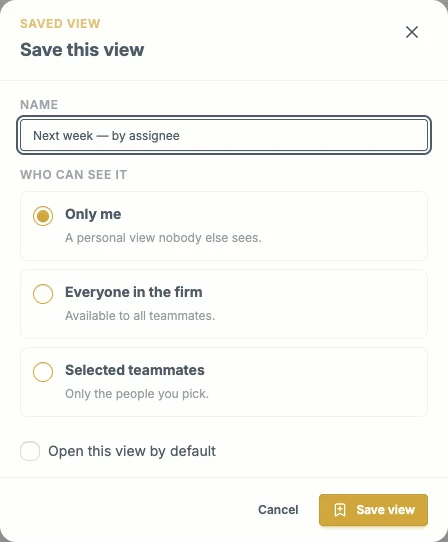
Name the view and choose who can see it. Only me keeps this example personal; use the appropriate sharing option for a team planning view.
Check the date chips each time you reuse the view. If they still show the previous planning dates, select Next week again and save the updated view.
Before finishing, check that the important Jobs are assigned, the budgets are present, and anyone receiving new work knows what they are responsible for.